

Live comment orders
Take orders from comments on your Page posts and Lives. FOM makes one card per buyer, asks each buyer for phone and address in Messenger, and you confirm the cards into orders.
During a Live or under a sale post, buyers order by commenting, for example CF A12 red 2. FOM reads every order comment and gathers each buyer's items into one card. It then messages each buyer privately in Messenger with their items and total, and asks for their phone number and address. When they reply, you check the card and confirm it into a normal order.
Before you start
- Your shop is on the Shop plan. Live orders aren't part of the free trial.
- Your Facebook Page is connected. See Connect Messenger.
- Live orders is switched on for your shop. If you don't see Live orders in the sidebar, contact us to switch it on.
- To confirm or cancel orders you need a role that can manage orders.
How buyers should comment
Tell buyers how to order at the start of the Live or in the post. A comment needs three things:
- An order word:
CF,confirm,order,ယူမယ်orမှာမယ်. Upper or lower case both work. You can add your own words in post settings. - A product code: the product's SKU, for example
A12. Show the codes on screen or in the post. See Products and options. - Options and quantity (optional): colour or size such as
red,Lorအနီ, then the number. Myanmar digits work, and so dox2,2pcs,၂ထည်or၂ခု. Without a number, the quantity is 1.
| Comment | What FOM reads |
|---|---|
CF A12 red 2 | A12, red, 2 |
A12 အနီ ၂ထည် ယူမယ် | A12, red, 2 |
cf a12 x2, b3 m | A12 × 2 and B3 size M |
မှာမယ် C5 L ၁ | C5, size L, 1 |
+1 or ထပ်ယူမယ် | One more of the buyer's last item |
- Several items can go in one comment, separated by commas or new lines.
- A buyer can comment many times. Everything goes into the same card for that post.
- If a buyer edits a comment, the card changes too. If they delete it, those items are taken off.
The Live orders board
Open Live orders in the sidebar. On the left, Posts and Lives lists each post or Live that got order comments, with the number of buyers. Pick one to see its cards. Click Settings to change how that post works, Mark ended when the Live is over, or Open on Facebook to go to the post.
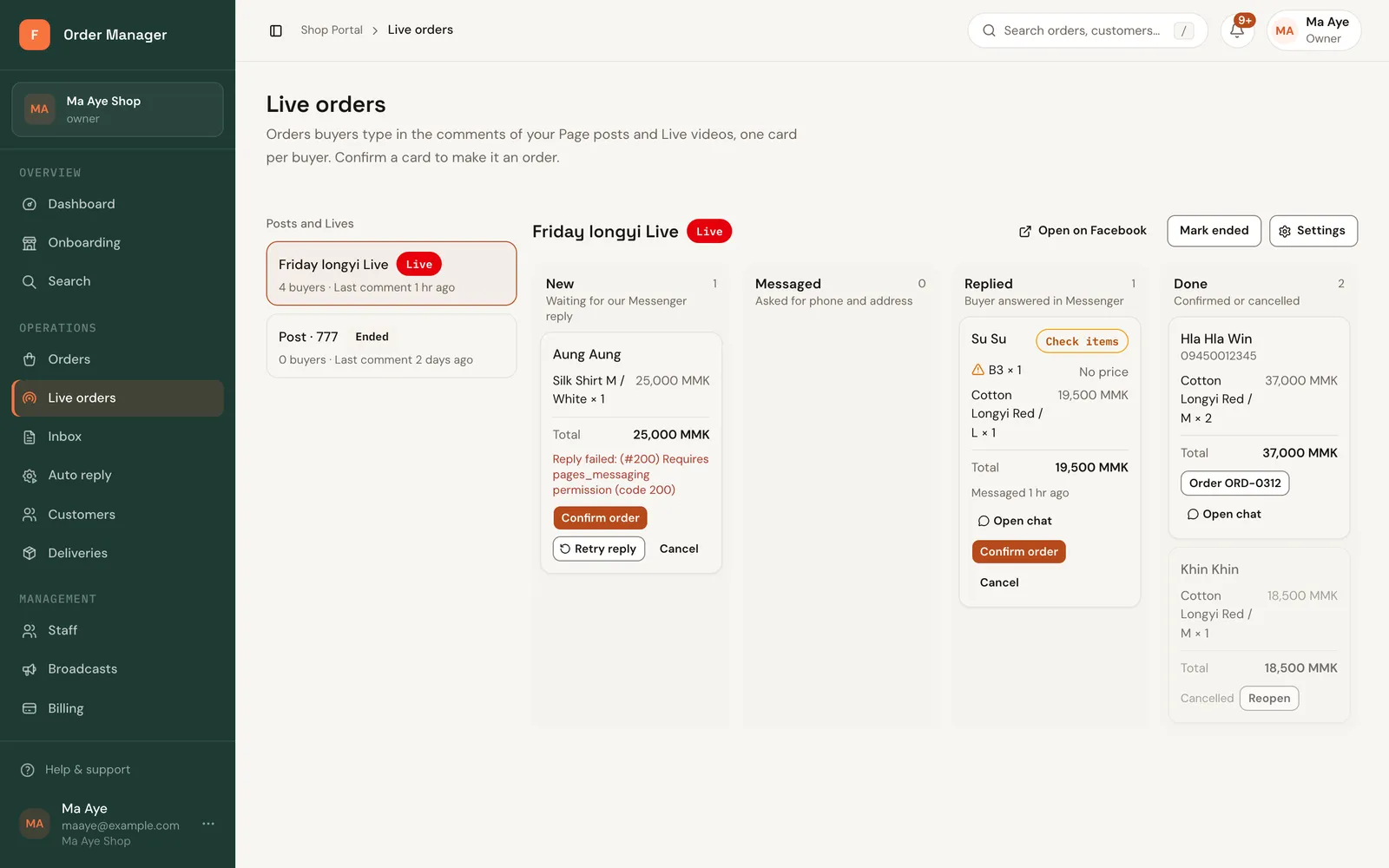
Each buyer has one card, in one of four columns:
| Column | Means |
|---|---|
| New | FOM hasn't messaged the buyer yet |
| Messaged | FOM asked the buyer for phone and address in Messenger |
| Replied | The buyer answered in Messenger. Open chat opens their conversation |
| Done | Confirmed into an order, or cancelled |
Watch for these on a card:
- A warning icon next to an item: FOM couldn't match the code to exactly one product, for example the code is wrong or fits more than one colour. The card shows Check items. Fix the item when you confirm.
- No price: the code wasn't found in your products. Pick the right product or type the price when you confirm.
- Reply failed: FOM couldn't message the buyer. See Troubleshooting.
Confirm an order
Wait until the buyer is in Replied, then click Open chat to read their phone number and address.
Click Confirm order on the card. The order form opens with the buyer's name and items filled in.
Add the Phone number, Township and Delivery address from their Messenger reply. Check the items, prices and delivery fee.
Click Create order. The card moves to Done and shows the order number.
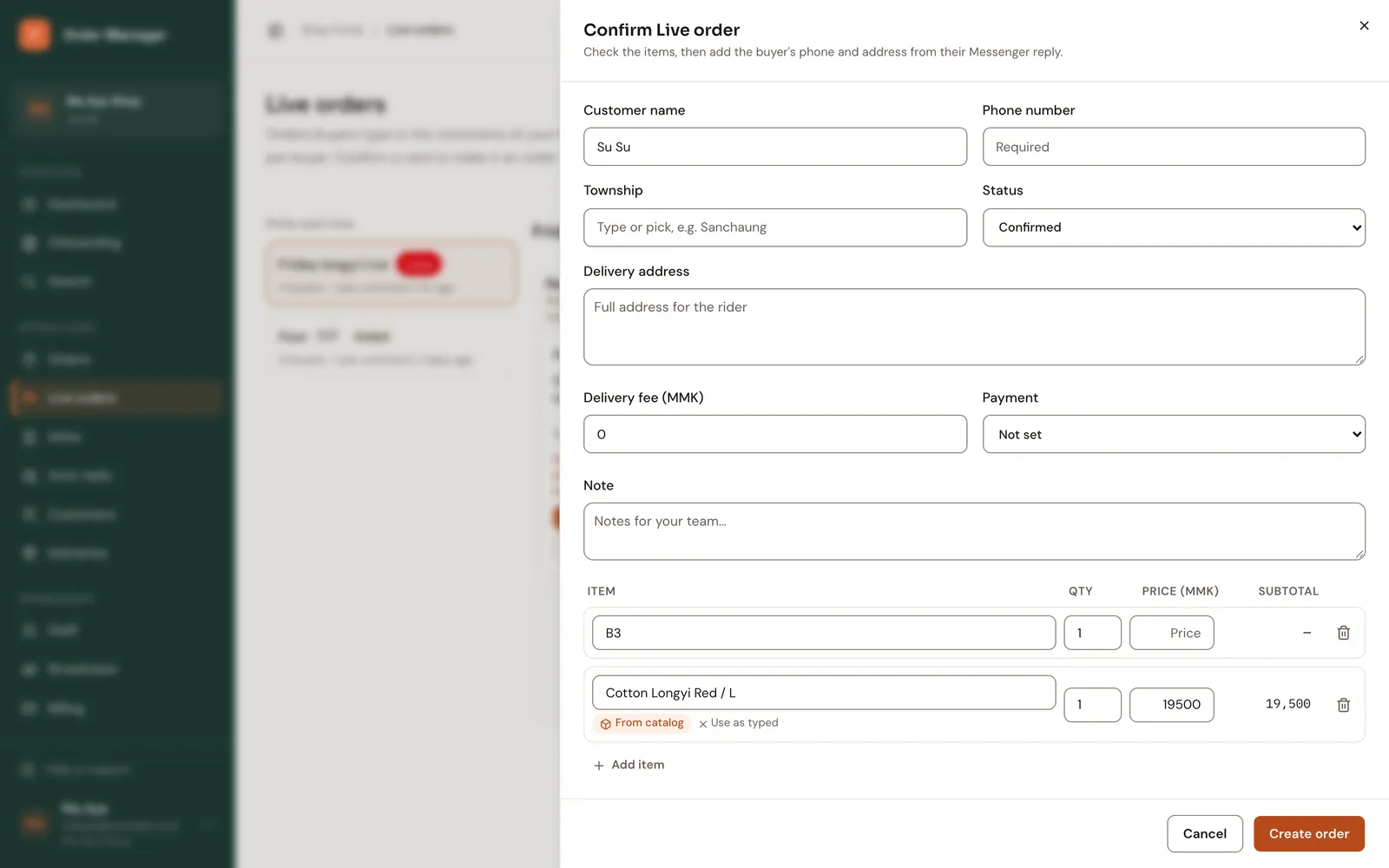
Stock is taken when the order is confirmed, not when the buyer comments. If many buyers order the last few items, confirm in the order they commented.
Cancel, reopen and retry
- Cancel removes the card from the open columns. The buyer's later comments on that post aren't added.
- Reopen on a cancelled card brings it back.
- Retry reply sends the Messenger message again after a Reply failed.
Post settings
Click Settings on the board. Settings apply to that post or Live only.
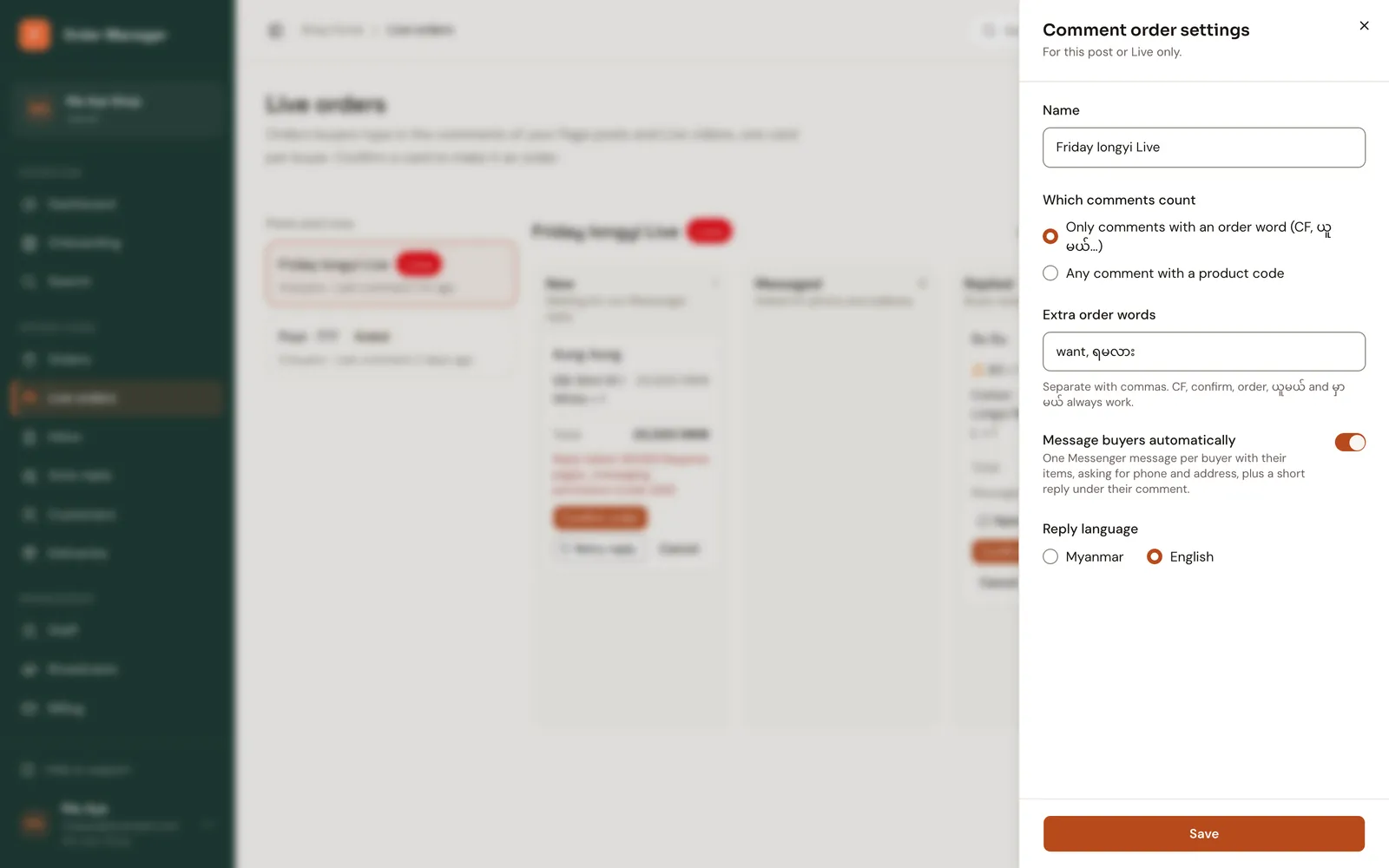
- Name: a name your team will recognise, such as "Friday longyi Live".
- Which comments count:
- Only comments with an order word (the default) takes comments like
CF A12. - Any comment with a product code also takes plain
A12 red. It catches more orders, but a question like "A12 still available?" also becomes an order, so check the cards more carefully.
- Only comments with an order word (the default) takes comments like
- Extra order words: your own words, separated by commas. The standard ones always work.
- Message buyers automatically: when on, FOM sends each buyer one Messenger message with their items and total, asking for phone and address, and a short reply under their comment. Turn it off to message buyers yourself.
- Reply language: Myanmar or English, for those messages.
Click Save.
In the app
In the FOM app, Live orders is under More → Live orders, with the same posts and buyer cards as the web.
Troubleshooting
| Problem | What to do |
|---|---|
| Comments aren't showing up | Check the comment has an order word and a code. Then reconnect your Page in Integrations (see Connect Messenger). If it still doesn't work, contact us. |
| A banner says Facebook hasn't given the Page all the permissions | Reconnect the Page in Integrations and allow everything Facebook asks for. If the banner stays, contact us. |
| Reply failed on a card | The message next to it says why. Click Retry reply. If it fails again, message the buyer yourself from the inbox. Facebook only allows a private reply to a comment within 7 days, and some buyers can't receive Page messages. |
| A buyer ordered the wrong code | Fix the item in the order form when you confirm. |