

Products and options
Add products with up to two options, like size and colour, with a price and stock for each combination.
Add the things you sell once, and pick them when you make an order. The price fills in, and confirmed orders take them from stock.
Before you start
Adding and editing products needs the Owner or Manager role. Other staff can see products and pick them in orders.
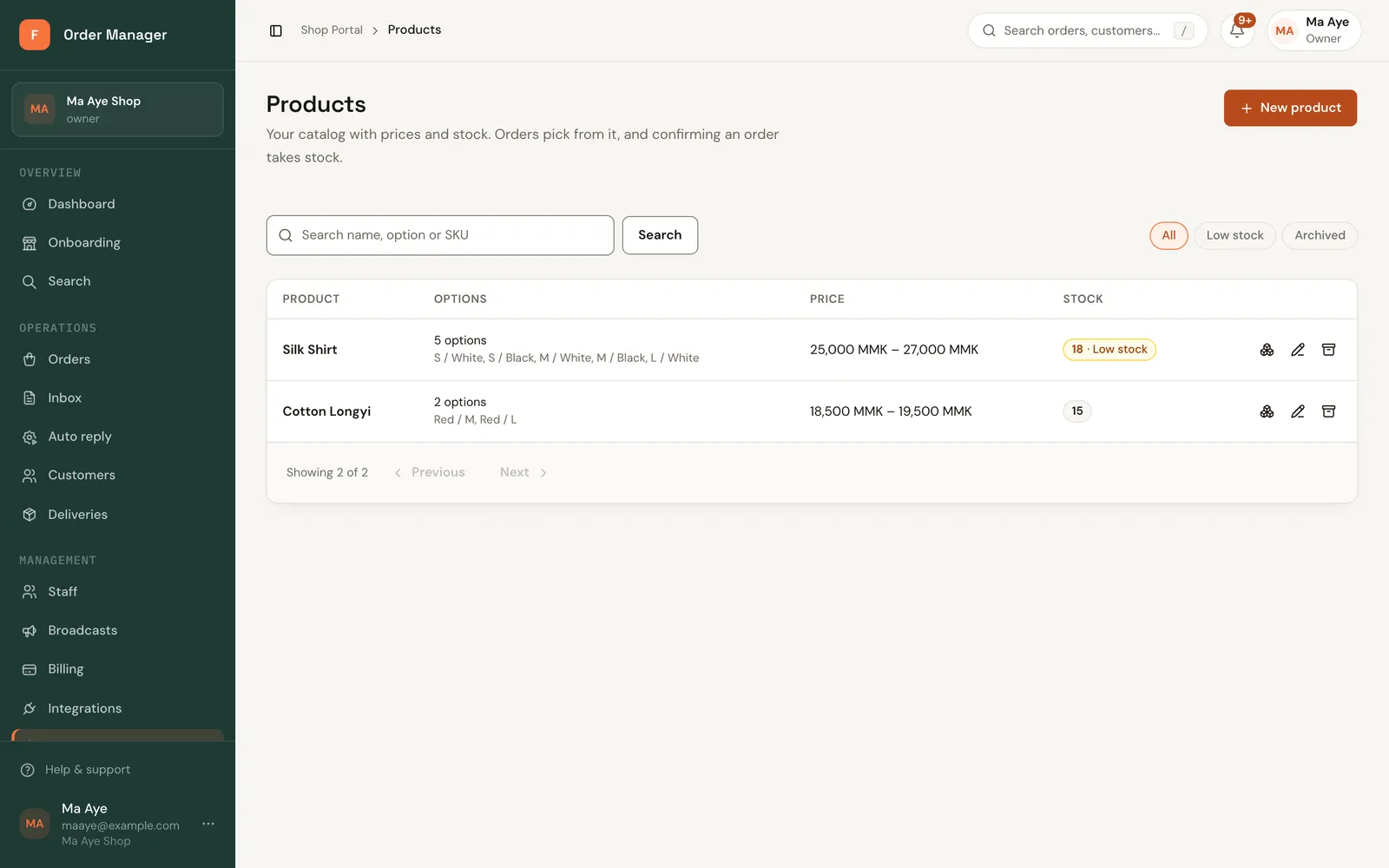
Open Products in the sidebar and click New product.
Enter the Product name and, if you like, a Description.
If it comes in sizes or colours, click Add option. Name it (for example Size) and add its Values: type one and press Enter, or paste them all at once, like S, M, L or အနီ၊ အပြာ.
Add a second option the same way if needed (for example Colour). FOM makes a row for every combination, like S / Red.
In Prices and stock, fill in each row: Price (MMK), Opening stock, an optional SKU, and Warn at (the low-stock level). Turn off Track stock for items you never run out of.
Click Save product.
Remove a combination you don't sell
If you don't sell one combination (say XL / Red), remove its row. Bring back removed combinations restores it.
Add photos
Photos show in the products list and on your shop page. A product can have up to 10; the first is the cover.
In the product's window, under Photos, click Add photos and choose JPEG, PNG or WebP files (iPhone photos work in Safari). On a new product, the photos upload as soon as you save it.
Use a photo's ⋯ menu to tie it to an option value, such as Red, so the shop page shows it when a buyer picks Red. The same menu moves a photo earlier or later, or removes it.
Big photos are made smaller, and location and camera details are taken out before they're saved.
Edit a product
Open it and choose Edit product. You can rename values without losing stock: renaming Red to Maroon keeps the same stock. Stock itself isn't changed here; use Manage stock.
Limits
Up to 2 options and 100 combinations. Option names and values must be unique, and prices and opening stock can't be negative.