

Status and payment
Move an order from New to Delivered, cancel it, mark it paid or COD, and edit it.
Every order moves through the same steps. Each order shows just the next one, so it's always clear what to do.
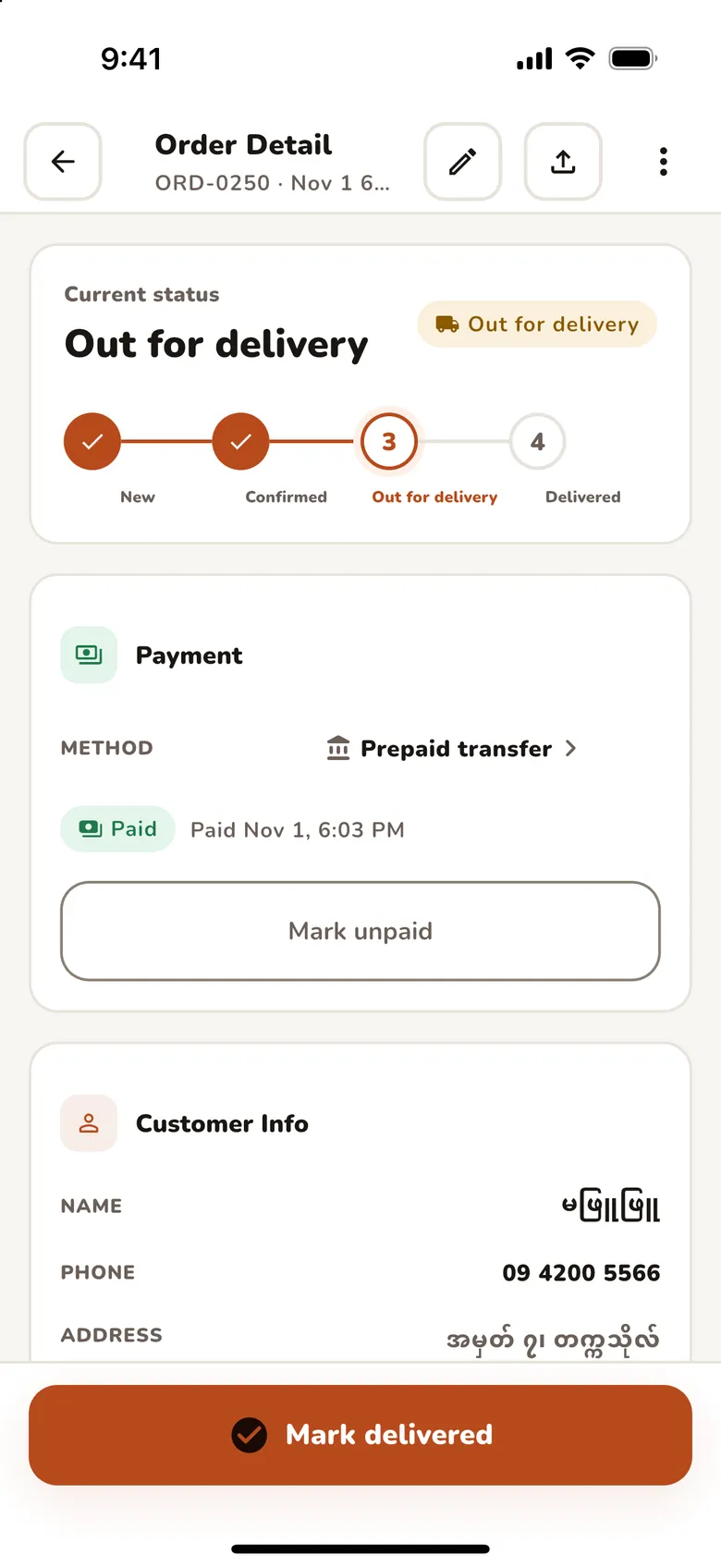
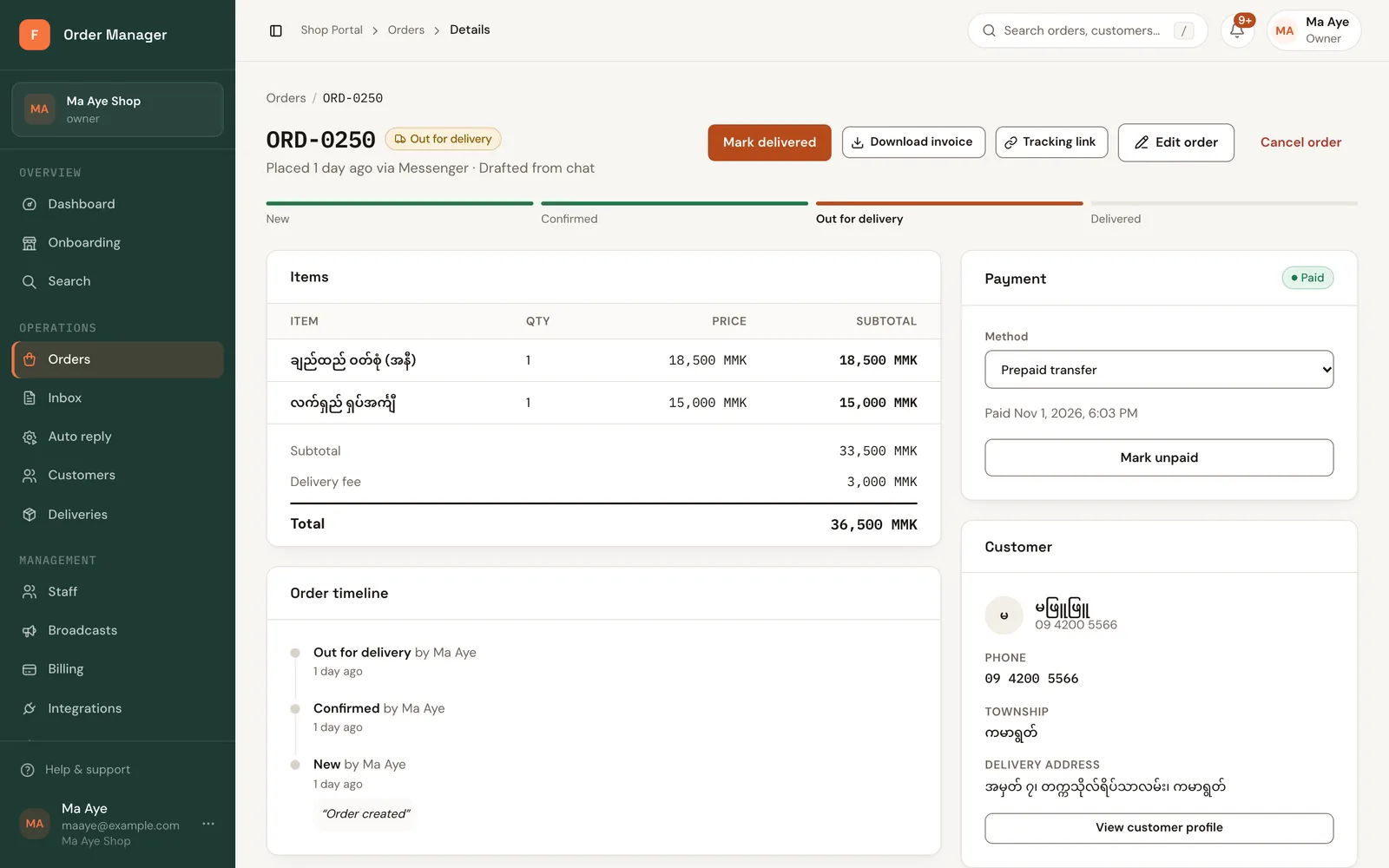
| Status | Next button | What it means |
|---|---|---|
| New | Confirm | You've accepted the order. Its items are taken from stock. |
| Confirmed | Send out | It's leaving with a rider or the post. |
| Out for delivery | Mark delivered | The customer has it. |
| Delivered | — | Done. |
Before you start
Changing status needs the Owner, Manager, Staff or Dispatcher role.
Move an order on
Open the order (or use the button on the list) and click the next step. If automatic messages are on, the customer is told when the order is confirmed and when it's out for delivery, with a tracking link. See Shop profile to turn these on or off.
Cancel an order
Click Cancel order, then confirm with Cancel order (or Keep order to go back). Cancelling a confirmed order puts its items back into stock.
Payment
The payment card on each order shows the method and whether it's paid:
- Mark paid when the money has arrived. Mark unpaid undoes it (FOM asks first).
- Cash-on-delivery orders show how much the rider should collect.
- To change the method, edit the order (web) or use Change payment method (app).
Edit an order
Click Edit order, change the customer, items, delivery fee or note, and save. Changing items updates stock for confirmed orders.
"Someone else changed this order while you were editing"
Another staff member saved the order first. Click Reload latest order, then make your change again.
Live comment orders
Take orders from comments on your Page posts and Lives. FOM makes one card per buyer, asks each buyer for phone and address in Messenger, and you confirm the cards into orders.
Invoices and tracking links
Download or share an order's invoice, and send customers a link where they can follow their order.