

Orders
The orders list
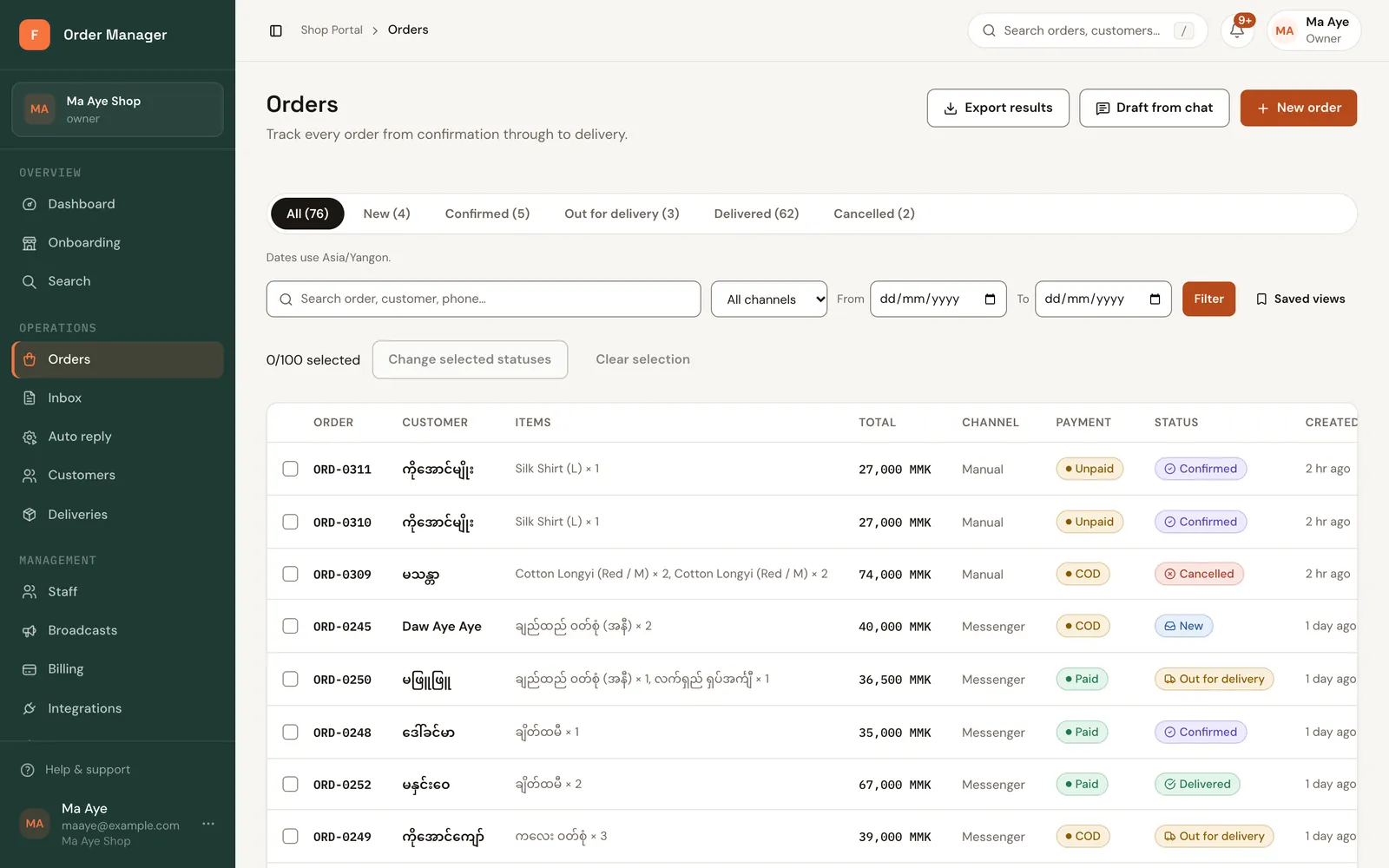
Find orders by status, search and date, move several orders on at once, and see what each order needs next.
Open Orders in the sidebar.
- Tabs filter by status: All, New, Confirmed, Out for delivery, Delivered, Cancelled.
- Search order, customer, phone… finds an order by number, name or phone.
- Filter by channel (All channels or Manual entry) and by date with From and To. Save filters you use often as a view.
- Each order shows one next-step button, like Confirm on a new order. See Status and payment.
Change many orders at once (web)
Before you start
Changing status needs a role that can move orders on: Owner, Manager, Staff or Dispatcher.
Tick the orders you want to change, up to 100. The counter shows how many are selected.
Click Change selected statuses and pick the New status.
Click Preview changes. FOM shows which orders can move to that status and which can't (for example, a delivered order can't go back to new).
Click Apply eligible changes.
Cancelling in bulk
Cancelling needs a Cancellation reason, and puts the items back into stock.