

Use the inbox
Read and reply to Messenger, Telegram and Viber chats in one place, send attachments, and keep track of Messenger's 24-hour reply window.
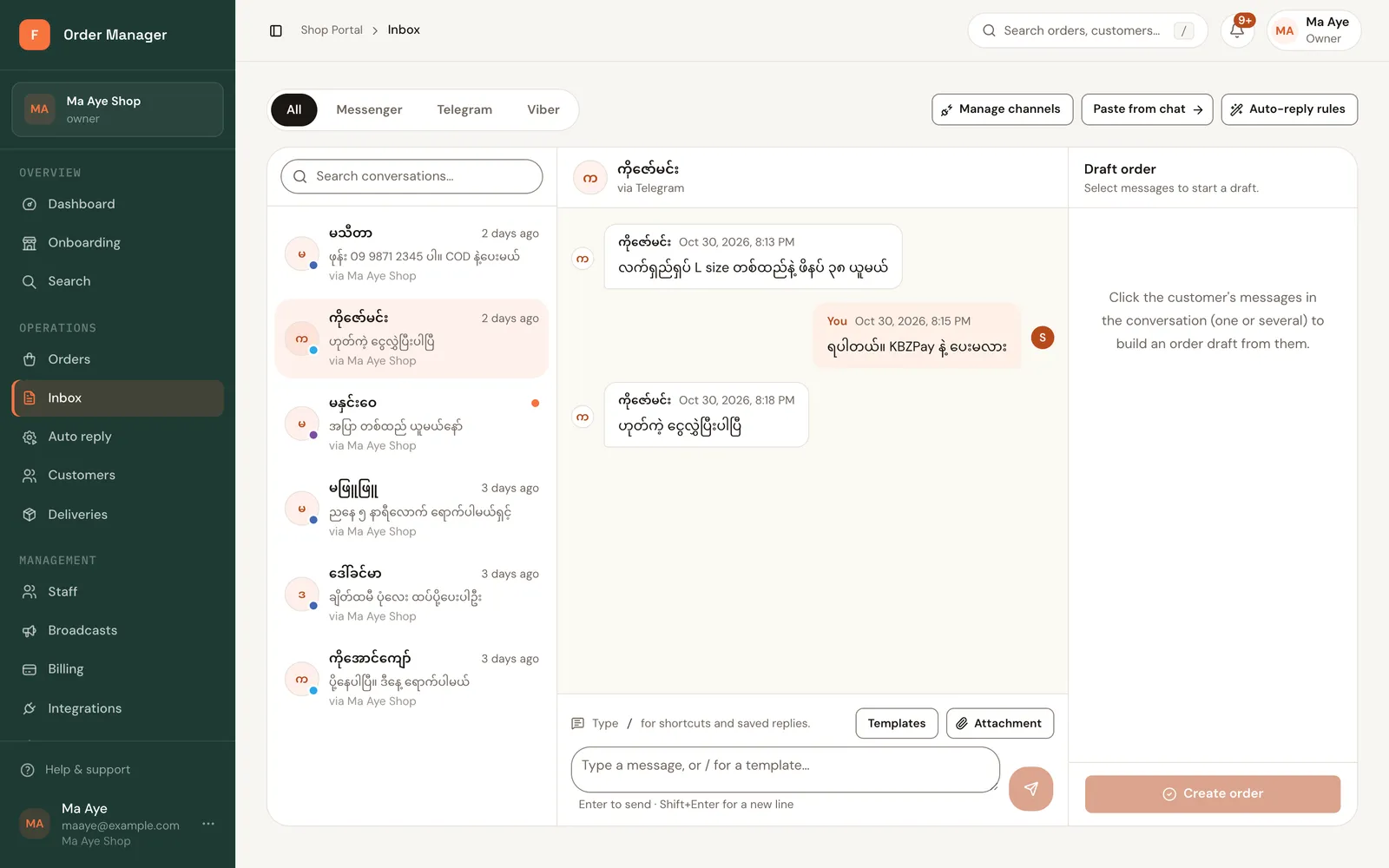
The Inbox brings every connected channel into one list of conversations.
Find a conversation
- Open Inbox in the sidebar.
- Use the channel tabs (All, then one per channel) and Search conversations… to find a chat.
- The banner Unread conversations · Show all switches between unread chats and all chats.
Reply
Open the conversation. New messages are marked read; you can also click Mark read (web).
Type in the message box. To use a saved reply, type / and pick a template. See Reply templates.
To send a photo or file, use Attachment (web) or Attach image or file (app).
Send with Send reply (web) or Send message (app).
If a message fails in the app, it shows Not sent · tap to retry.
Messenger's 24-hour reply window
Facebook only lets pages reply normally within 24 hours of the customer's last message. Messenger chats show how much time is left, for example 5h left to reply, or Reply window closed when it has passed. Reply as soon as you can; once the window closes, wait for the customer to message again.
Turn the chat into an order
When a customer has sent their order details, make the order straight from the chat. See Make an order from a chat.
If the customer ordered by commenting on your Page post or Live, the chat header (web) shows a Live order chip with the total, or the order number once it's confirmed. Click it to open that post on the Live orders board, or the order once it's confirmed. See Live comment orders.