

Reply templates
Save replies you send often, add the customer's name or tracking link automatically, and insert them in any chat with /.
Templates are saved replies, like your price list, bank details or delivery times. Insert one in any chat by typing /.
Before you start
Creating and editing templates needs the Owner or Manager role. Everyone who can reply can use them.
Create a template
Open Templates in the sidebar and click New template.
Fill in the Slash command (for example price), a Title and the Message.
To personalise it, click the Insert: chips to add placeholders (see below).
Click Save template.
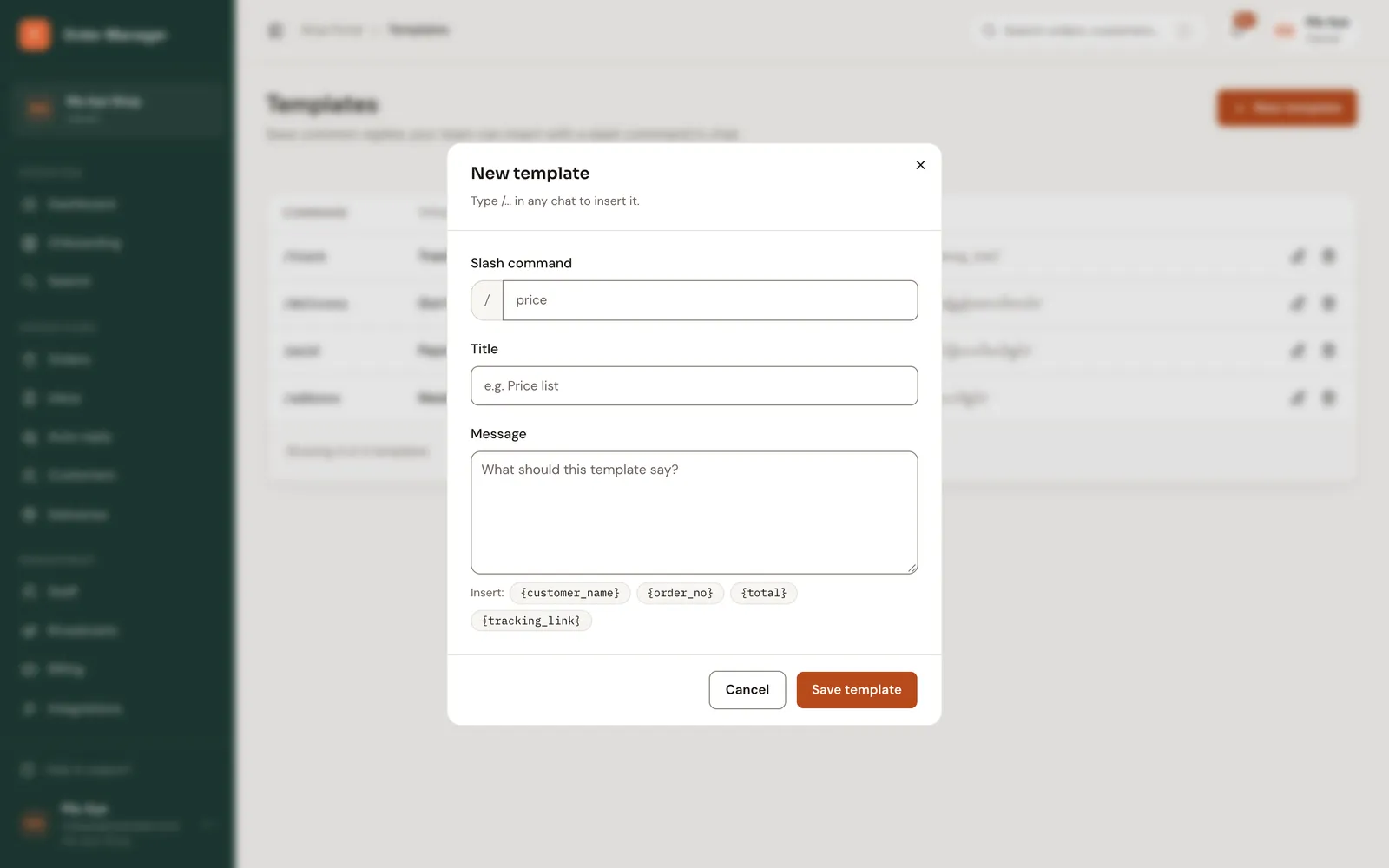
Placeholders
When you insert a template in a chat, FOM fills these in from the chat's customer and their latest order:
| Placeholder | Becomes |
|---|---|
{customer_name} | The customer's name |
{order_no} | Their latest order number |
{total} | That order's total, e.g. 27,000 MMK |
{tracking_link} | The link where they can follow that order |
For example: Hi {customer_name}, follow {order_no} here: {tracking_link}.
If the chat isn't linked to a customer with an order, the placeholder stays as typed and FOM warns you: Some placeholders couldn't be filled for this customer. Fill it in by hand before sending.
Use a template in a chat
In the message box, type / and the start of the slash command.
Pick the template. On the web choose Insert or Append; in the app, Append or Replace.
Check the text and send.