

Roles and permissions
The built-in roles, what each can do, and how to make your own role.
Each staff member has one or more roles. A role decides what they can see and do.
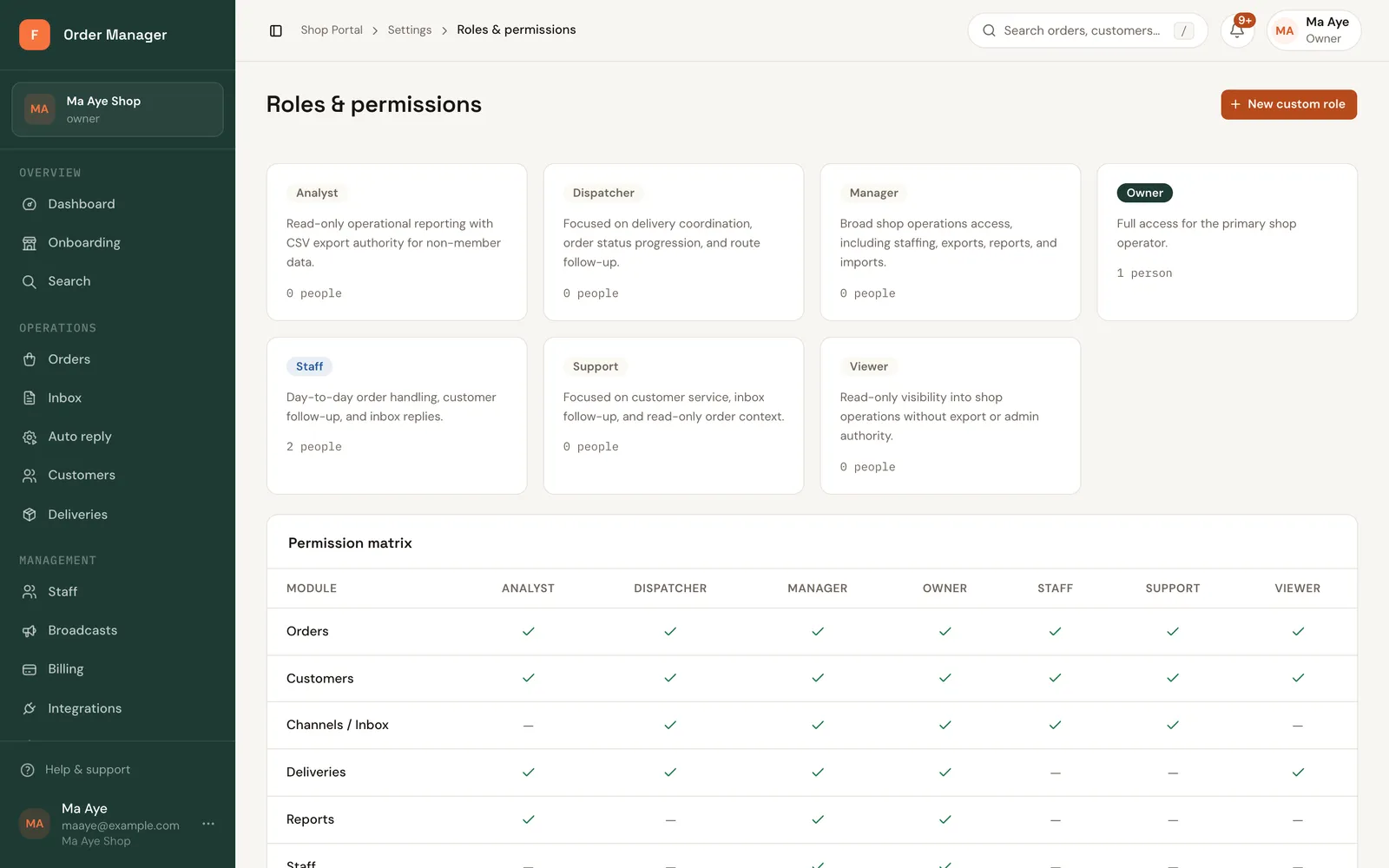
Built-in roles
| Role | For | Can |
|---|---|---|
| Owner | The person who runs the shop | Everything, including billing, shop settings, roles, broadcasts and the activity log |
| Manager | Shop managers | Orders, customers, products, deliveries, channels, templates, staff, reports, exports and imports |
| Staff | Day-to-day work | Make and handle orders, follow up with customers, reply in the inbox |
| Dispatcher | Deliveries | Deliveries and moving orders on |
| Support | Customer service | Reply in the inbox; read orders without changing them |
| Analyst | Reporting | Read reports and export data (not the staff list) |
| Viewer | Read-only access | See shop activity, with no changes and no exports |
Owner-only by default
Billing, shop settings and automatic messages, merging duplicate customers, broadcasts, roles and the activity log are for the Owner. A Manager can't do them unless you give a custom role those permissions.
Make a custom role (web)
Before you start
Managing roles needs the Owner role.
Go to Settings → Roles & permissions and create a new role.
Enter the Role name and a Description.
Under Module access, tick the permissions. All actions selects a whole group, like Orders or Deliveries.
Click Create role, then give it to staff on the Staff page.
In the app, the same is under More → Settings → Roles & Permissions → Create custom role.
If you delete a role, staff who had only that role need a new one.